
****Ignite Gallery uses the Joomla Multilingual system*** Firstly, please set up the Joomla multilingual languages/menus/modules. You can see info on how to do this here
**This feature was added in version 5.4 of Ignite Gallery**
Ignite gallery manages multilingual content by "Cloning" galleries. When you Clone a gallery, a copy of the gallery is made with new database records. But the image files in the original gallery are used in the cloned gallery. This way no extra image files are created (no extra server space is used). In the cloned gallery, you can add new language content.
Please note, if you use the gallery "copy" button, new image files will be created for the new gallery. When you copy a gallery, a new gallery is made, and the amount of images on the server increases.
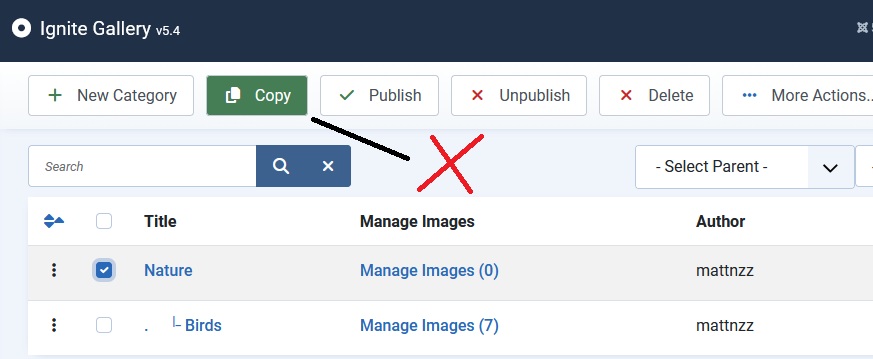
Here are the steps to create multilingual galleries:
1)Create your galleries using the first language
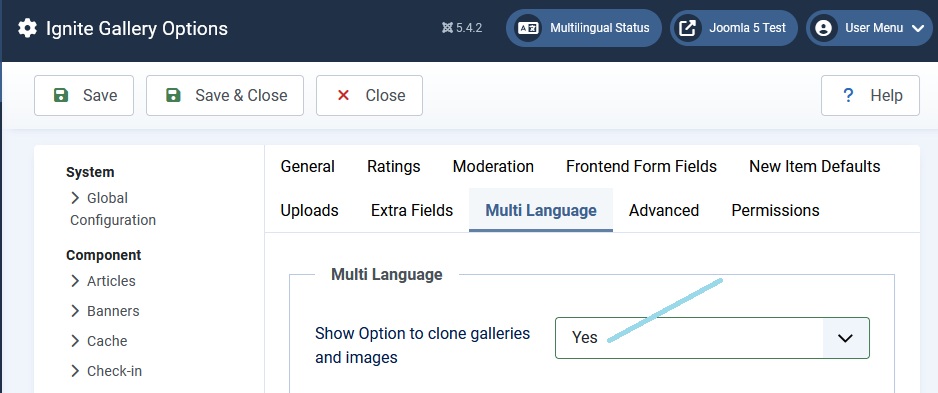
2)Choose to show the clone option:
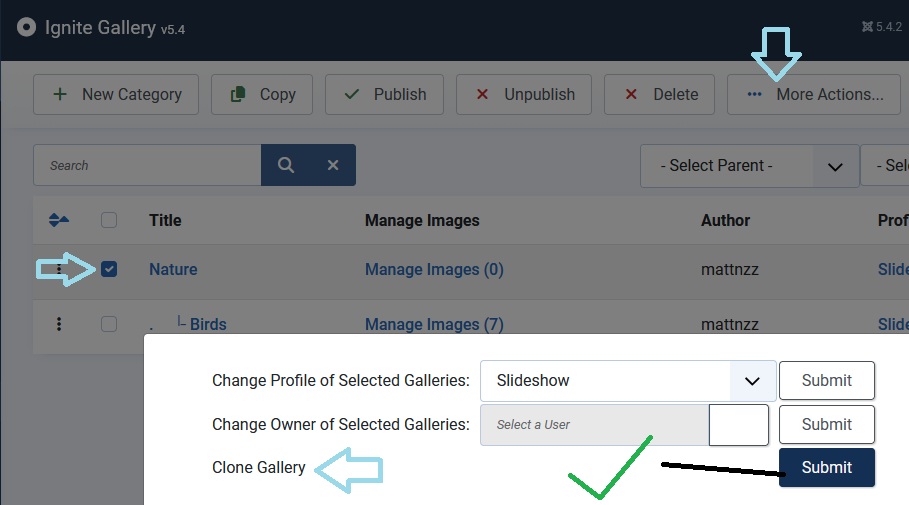
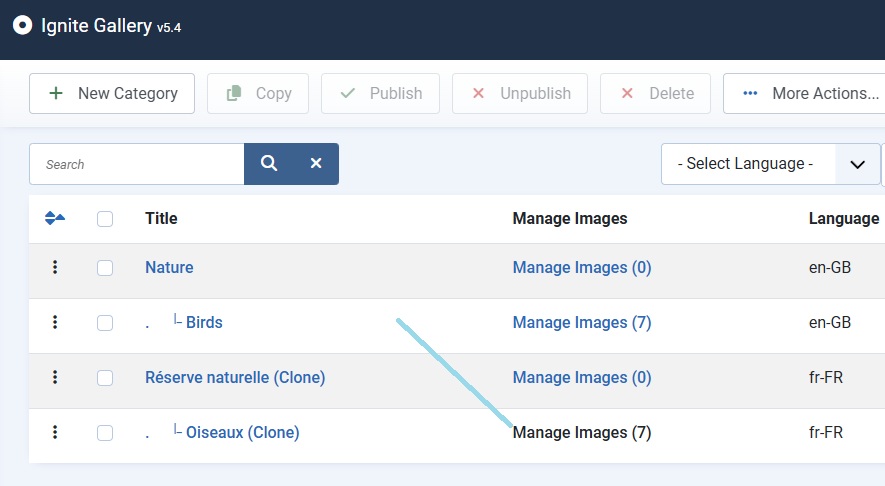
3)Use the clone button to clone the galleries:
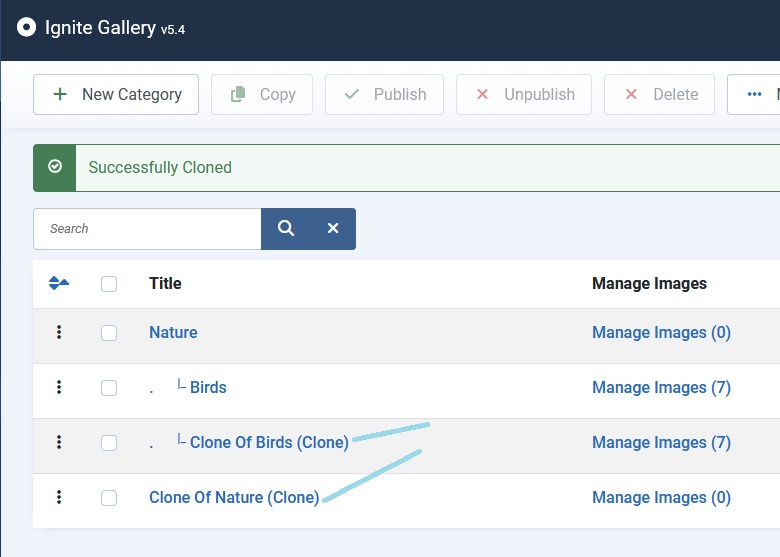
4)Now we can edit the cloned galleries:
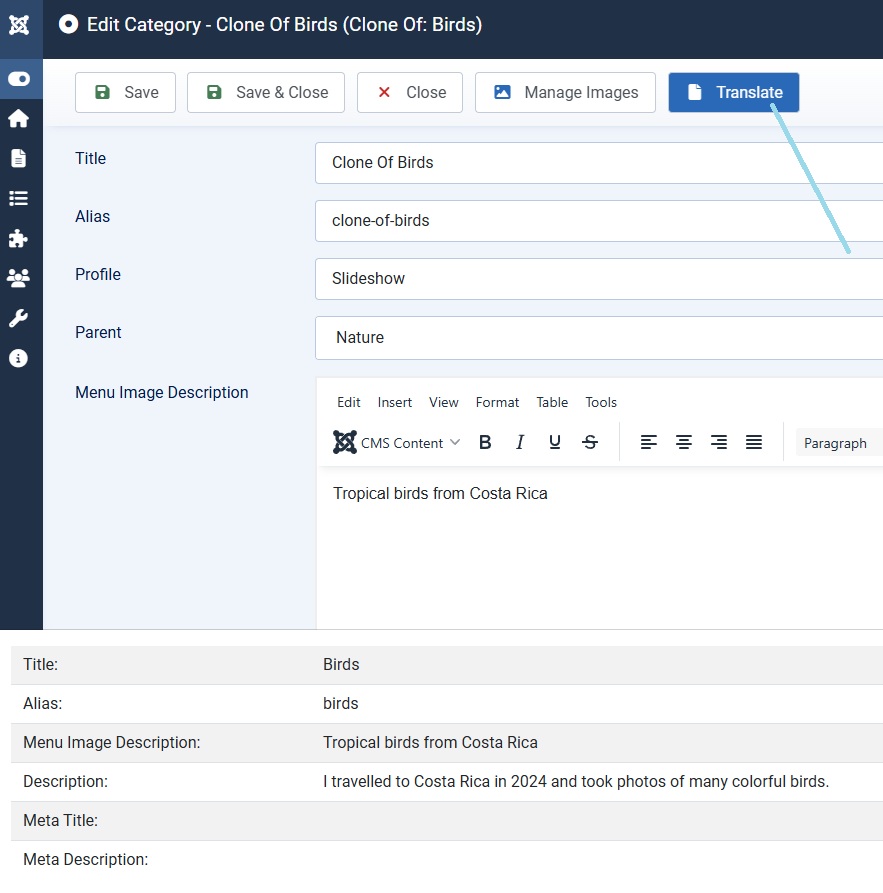
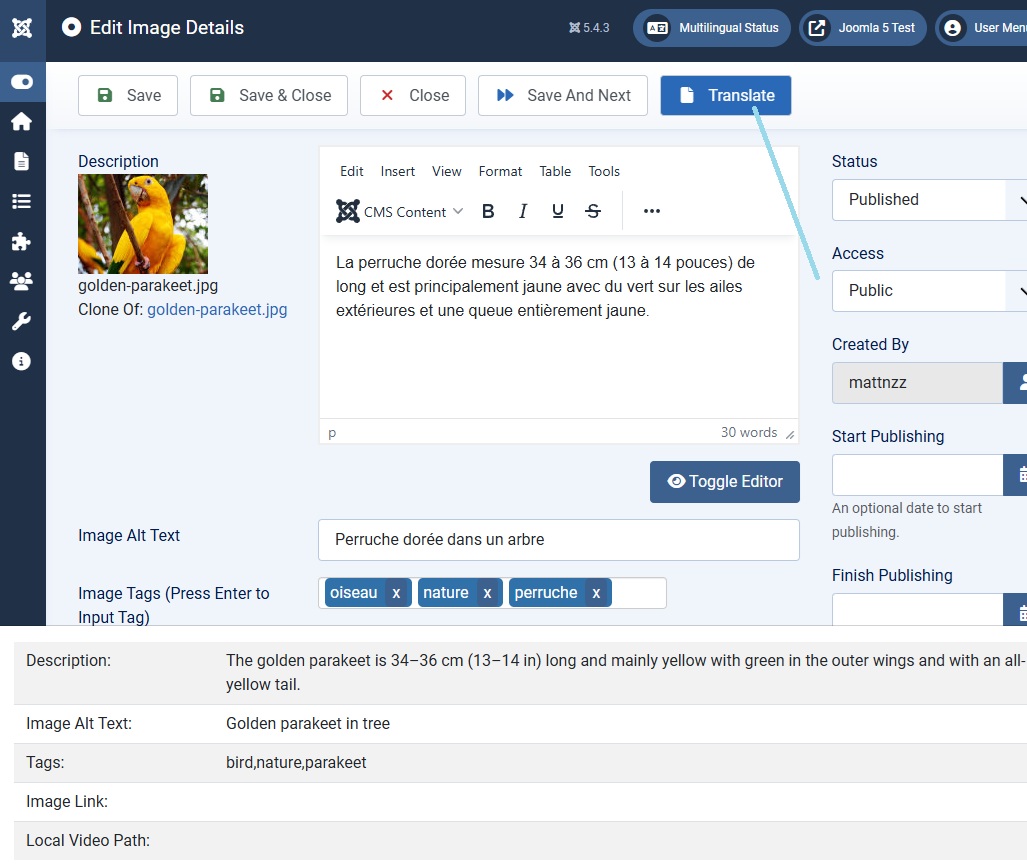
5)Edit the gallery and press the translate button, the text from the original gallery will show at the bottom :
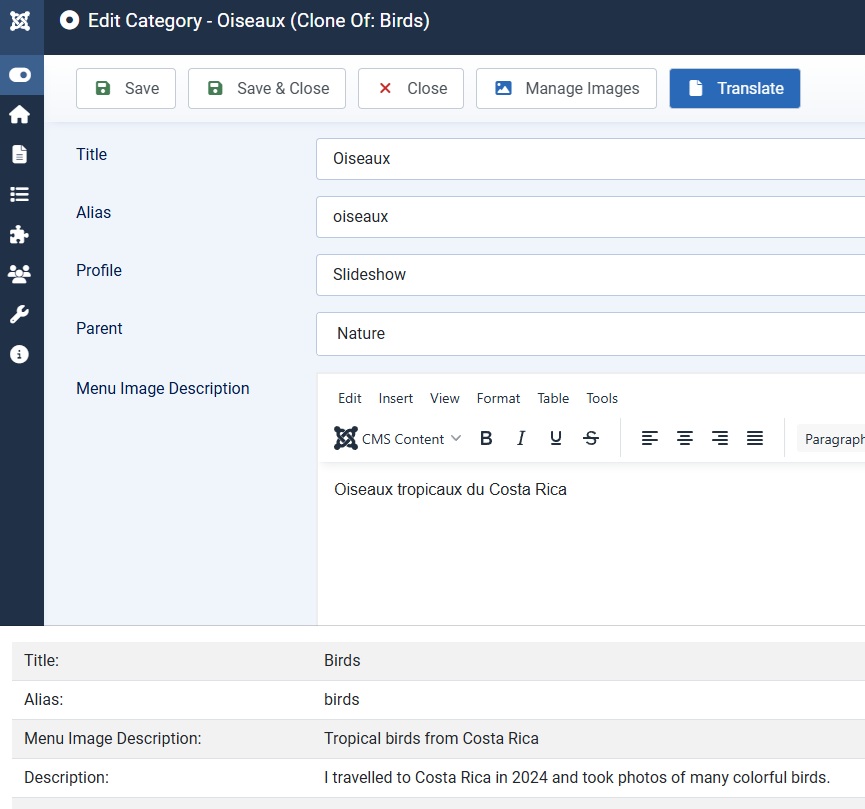
6)Add the translation for the new language:
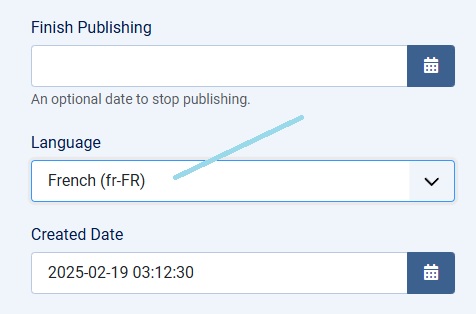
7)Set the language for the gallery:
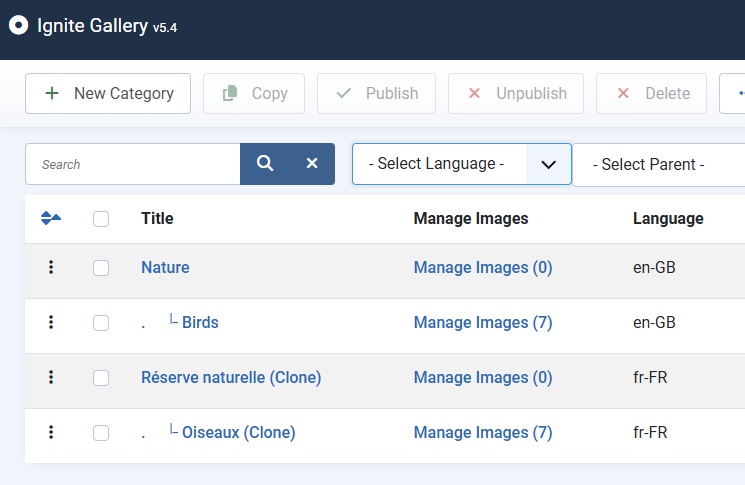
8)Now the galleries are translated:
8)Now let’s translate the images:
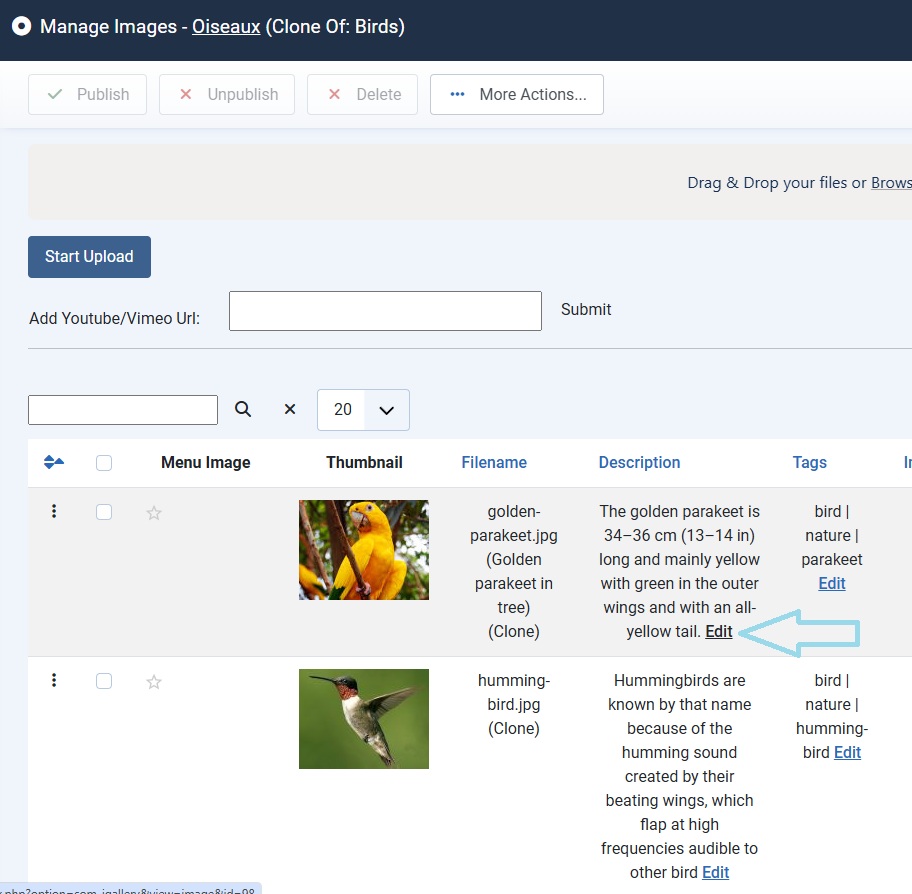
9)Choose the edit image link:
10)Translate the image:
**Before you do step 11, you need to set up the Joomla multilingual language/menus/modules, please see here
11)Create an English menu item to the English gallery (choose the ignite gallery component):
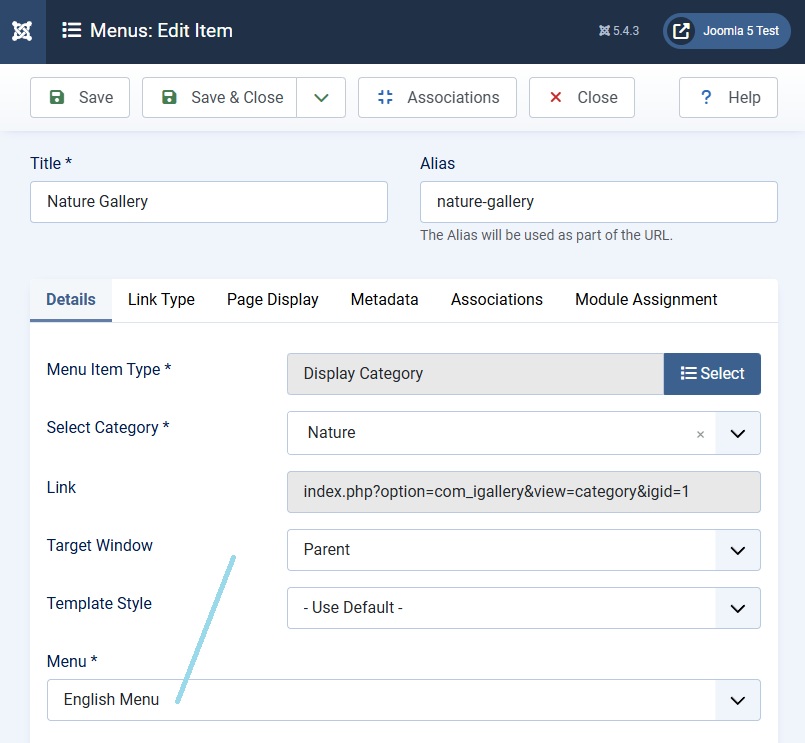
12)Create an French menu item to the French gallery:
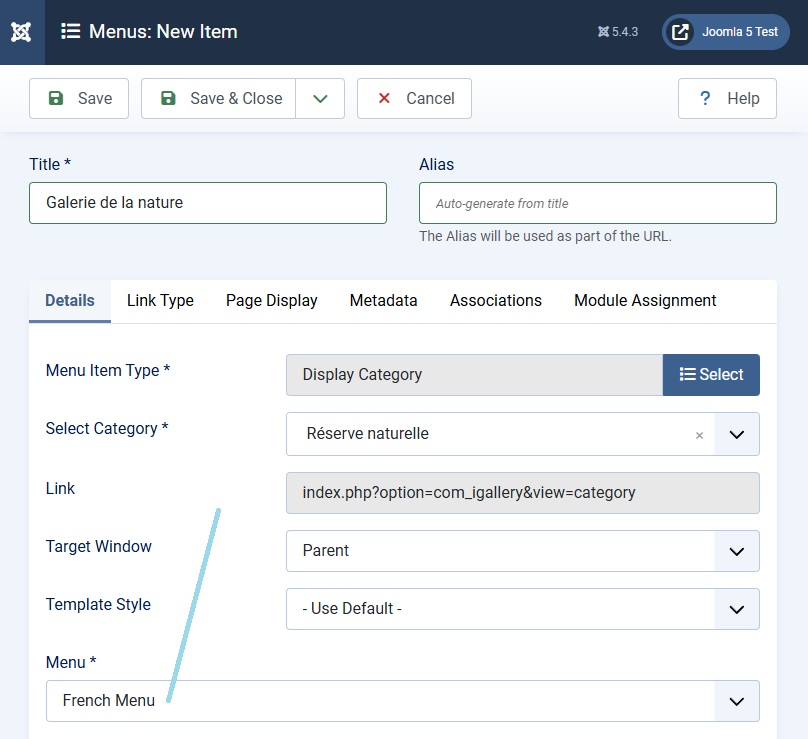
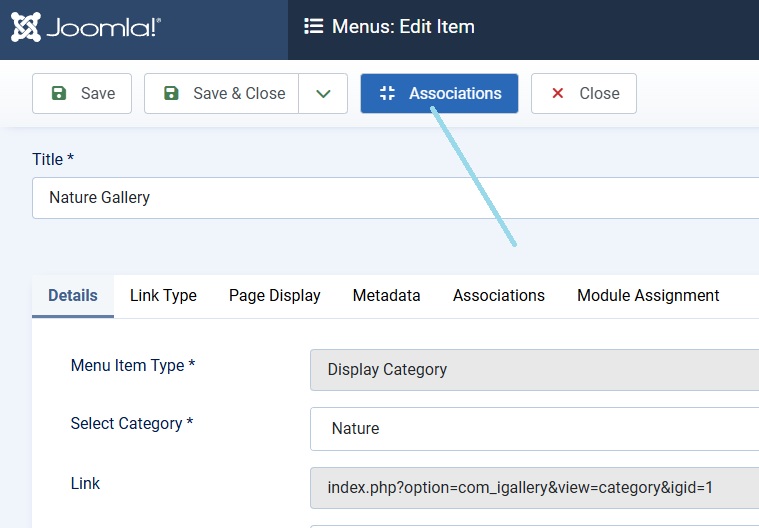
13)Choose the associations link:
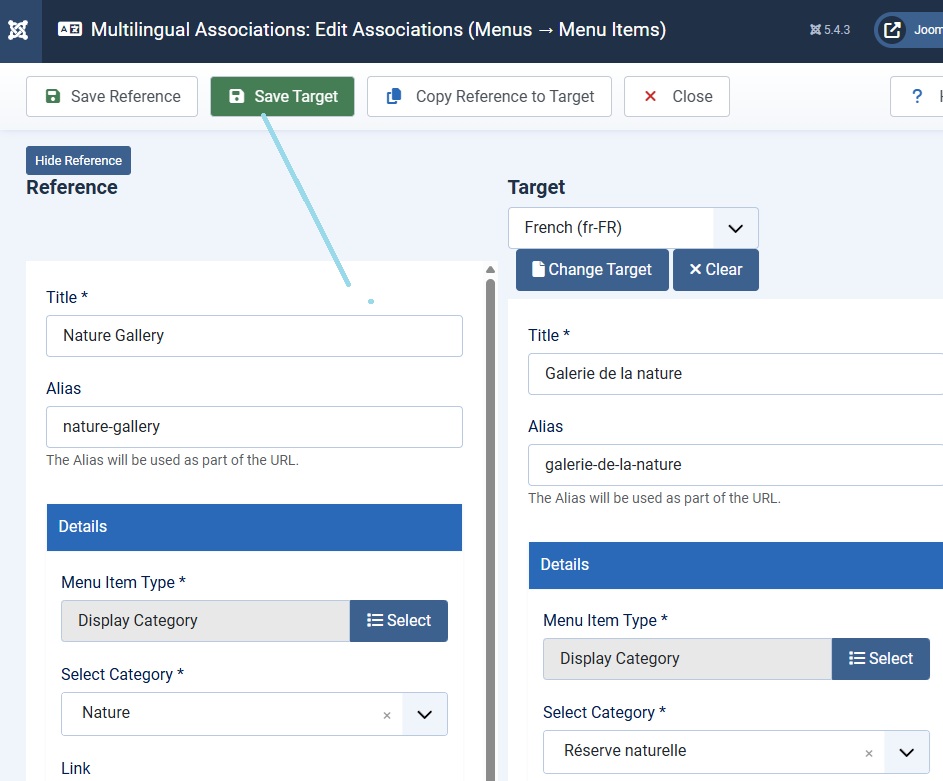
14)Create an association between the 2 items:
15)View the English gallery menu item in the frontend, and choose the French link in the language switcher module:
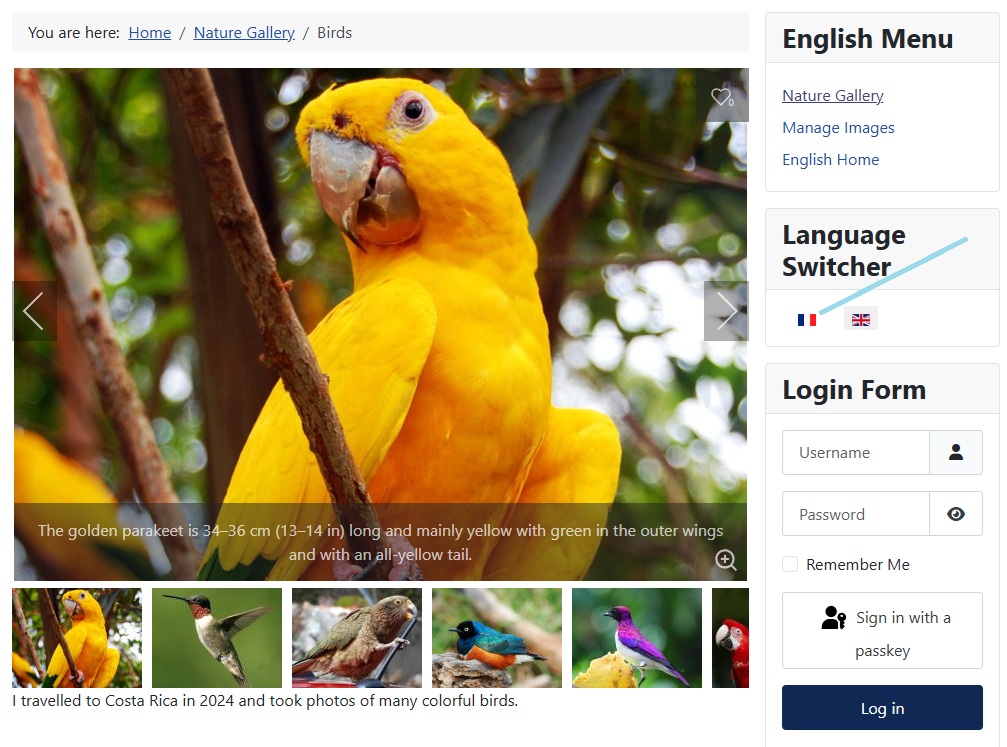
16)After clicking on the language switcher module, the French menu item will show:
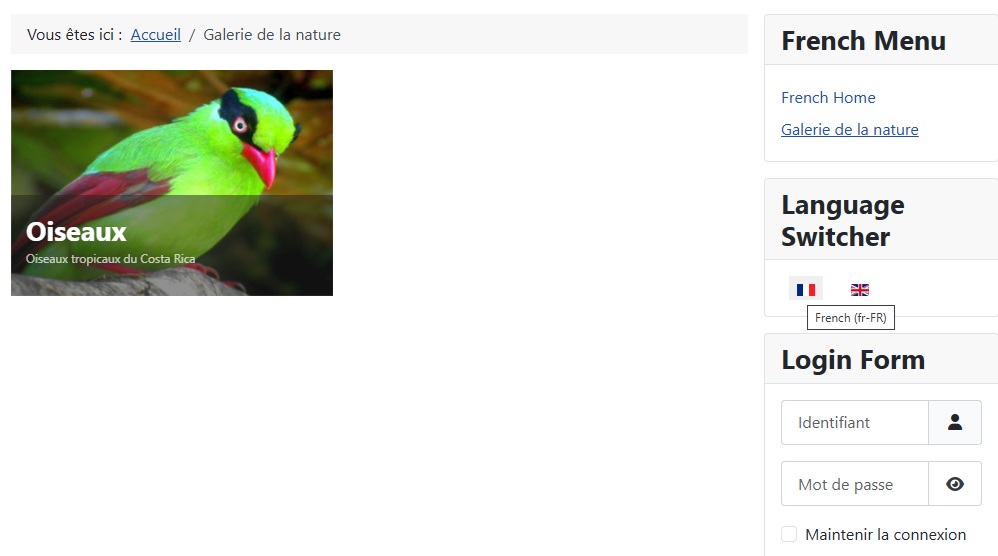
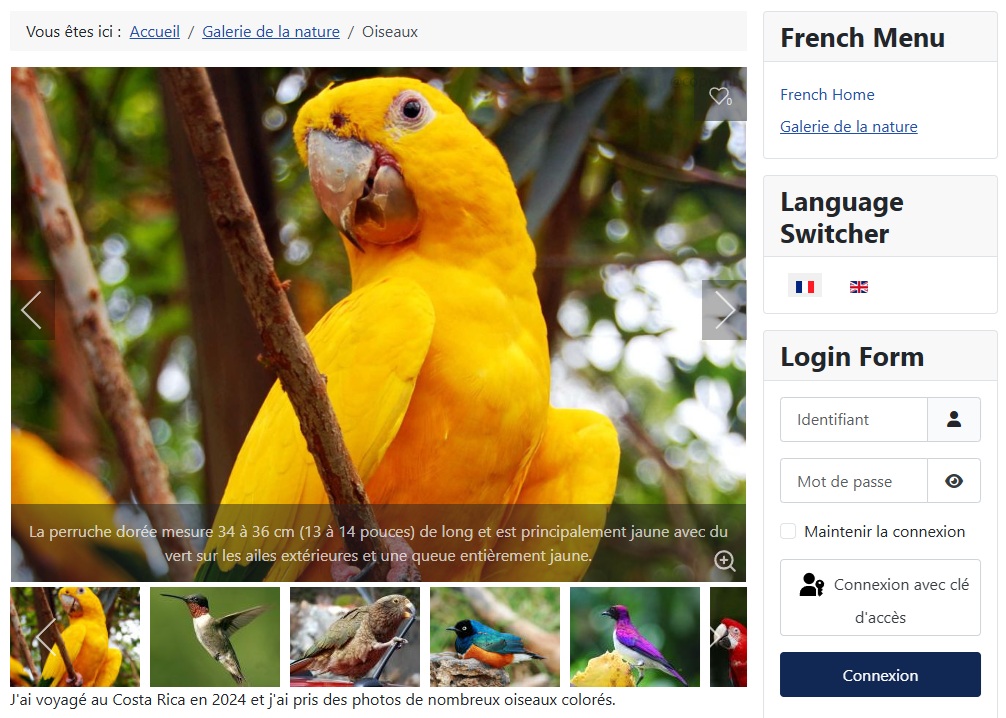
17)You can view the translated gallery:
**Extra Options**
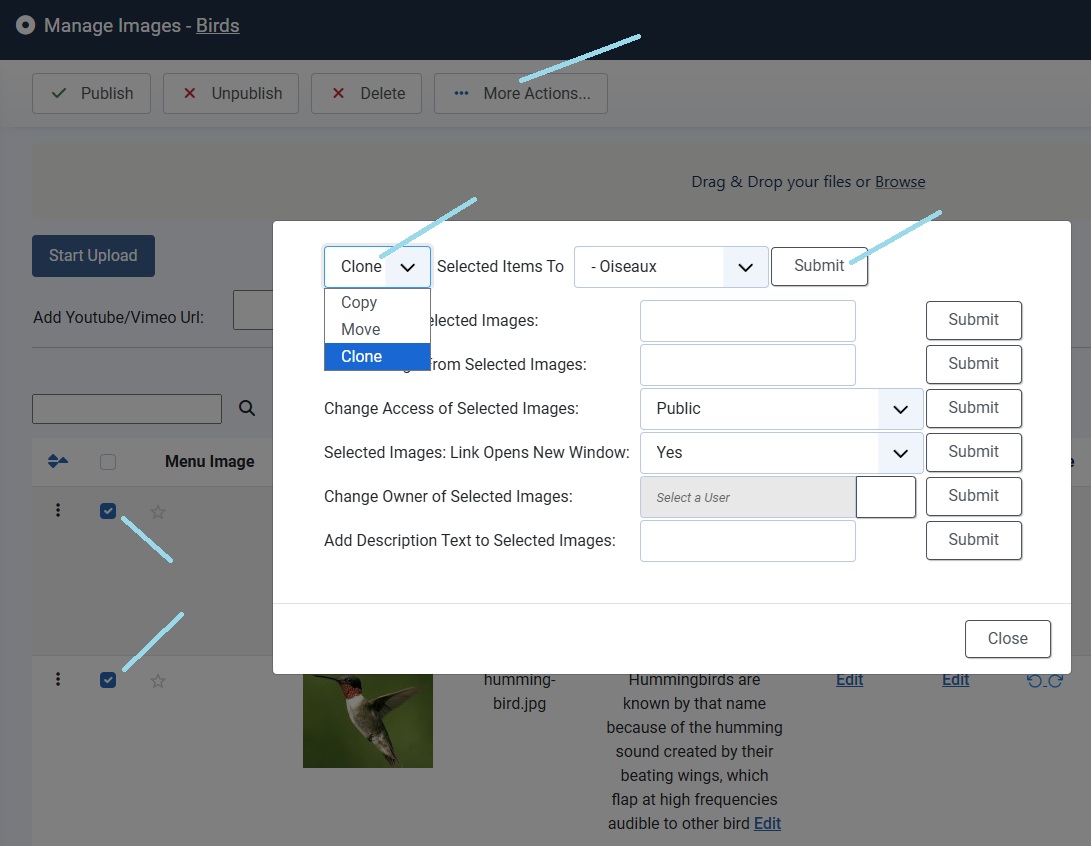
You can clone images directly from 1 gallery to another. When an image is "Cloned", no extra server space is used. The file from the original gallery is used in the cloned gallery:
You can control what actions can be done in the cloned gallery:
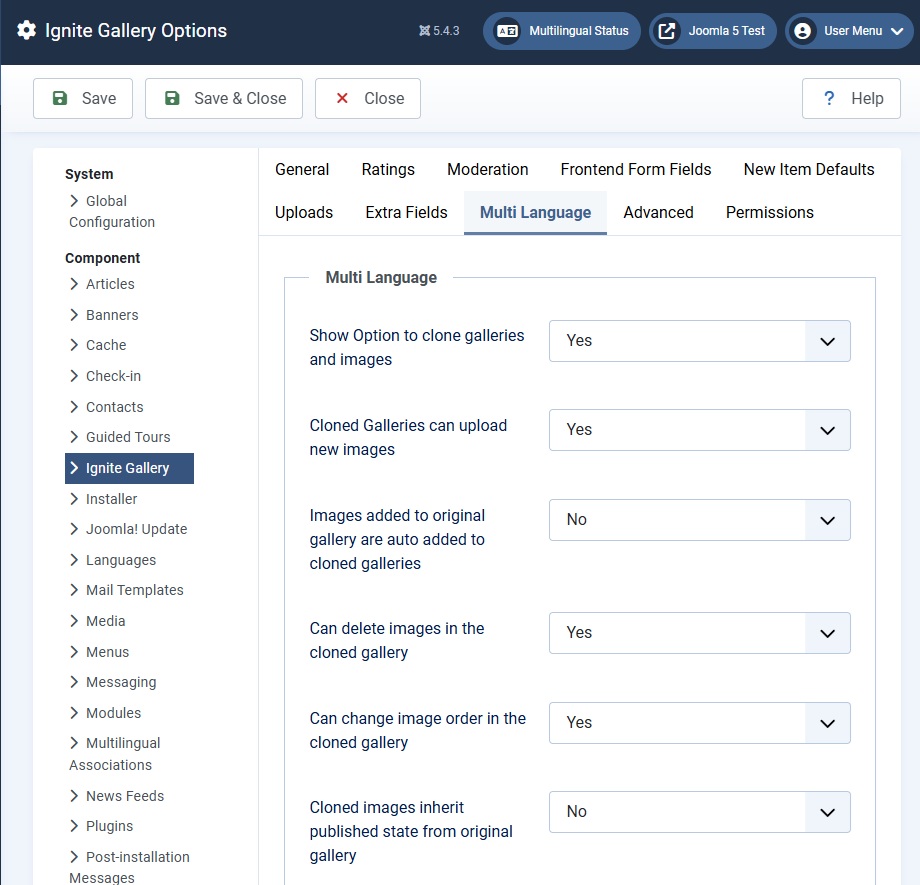
- Cloned Galleries can upload new images, choose no if you want to prevent users uploading images to cloned galleries. This forces users to upload images to the original gallery.
- Images added to original gallery are auto added to cloned galleries. If yes, you can upload an image to the original gallery, and it will be auto-added to the cloned gallery
- Can delete images in the cloned gallery, choose no to force the user to delete images in the original gallery.
- Can change image order in the cloned gallery, choose no to force the user to re-order images in the original gallery
- Cloned images inherit published state from original gallery. If yes, then you can not change the pubished state in the cloned gallery. The cloned image will get the published state from the original image